Find a workflow
for your next idea.
Follow these workflows in Cove for Mac. The previews show Cove with sample conversations and simulated model replies.
Handle a quick question without opening a browser
Open the native Quick Panel for a short task, then move the saved conversation to the full workspace when you need more room.
- Choose Open Quick Panel from the Cove menu bar. For the global shortcut, enable Quick Panel Shortcut in Launcher Settings, then press Control-Option-Space.
- Type, paste text, or drop a supported file. Check the selected model and processing destination before sending. The panel grows for longer drafts and answers.
- Pin the panel to keep it nearby, or press Escape to hide it with your draft and attachments retained in memory. After the turn settles, Continue in Cove opens the saved conversation in your browser; unsent follow-up text stays in the panel.
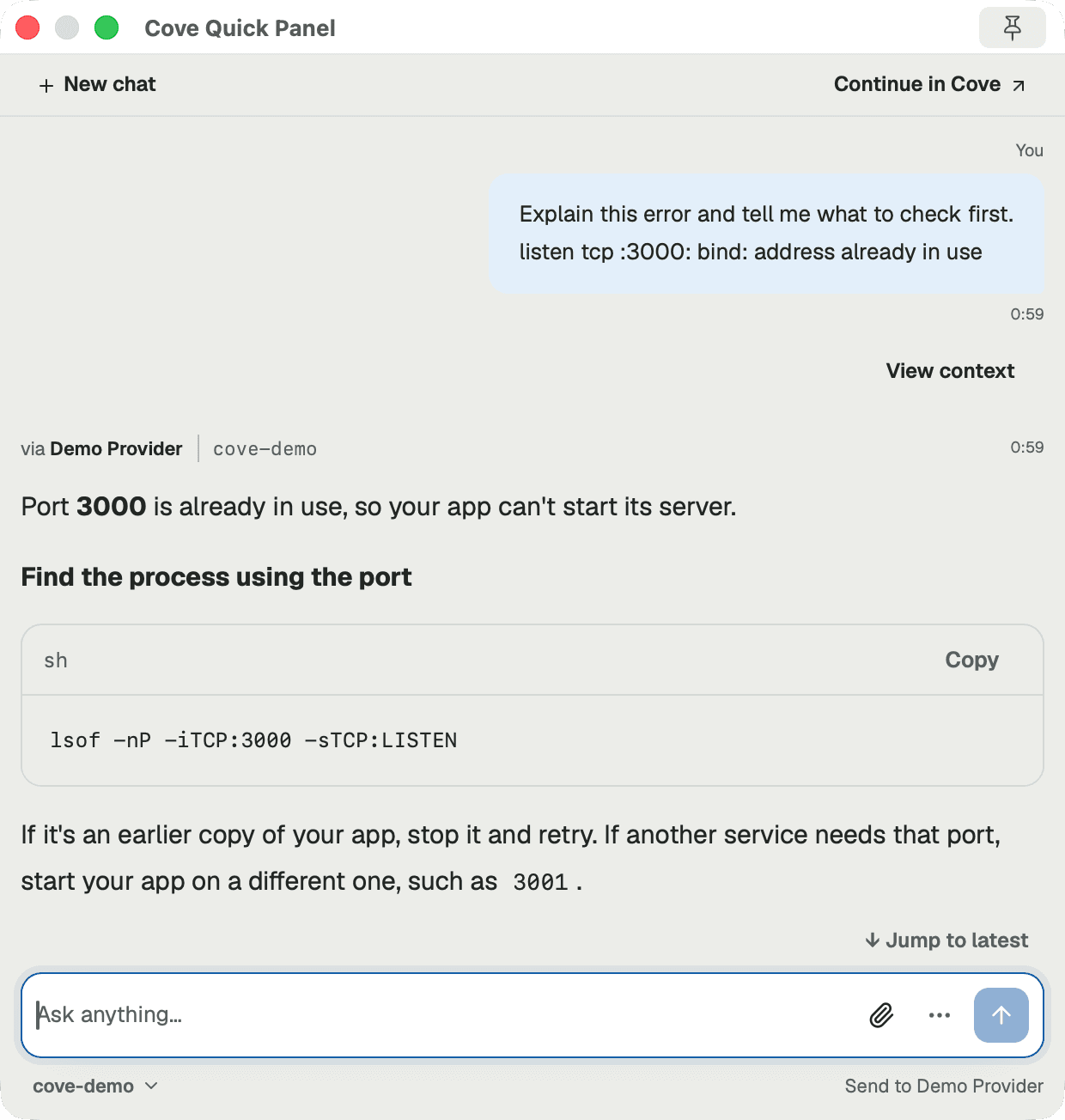
Explain this error and tell me what to check first: listen tcp :3000: bind: address already in use
Keep a small task on this Mac
Install a small local chat model and search selected documents without a cloud fallback. Apple Silicon and macOS 13.3 or later are required.
- Open Settings > On this Mac > Discover. Install an integrated Qwen chat model and BGE for document search. Installation needs internet access and additional disk space; explore-only entries are references, not runnable integrations.
- Choose On this Mac in the model selector and enable Only on this Mac. This rejects remote chat targets and suppresses Web research. Installed local processing works offline; small-model answers remain experimental.
- Use Tools to open local document search. Import and select documents, inspect original sections, and attach chosen results. Adjust the similarity filter if needed; it is a ranking cutoff, not a confidence score. Searching does not send your chat draft.

Turn these notes into three next actions, and identify what is still undecided: [paste a short set of notes].
Give related conversations a shared starting point
Keep instructions, background, and fixed materials in a Project, then start related conversations without re-entering them.
- Open Projects, create a Project, and add reusable instructions, background, and selected files or explicitly read webpages.
- Choose Always include or Search when needed for each material. Search-only materials enter a turn only when you explicitly select passages from local search.
- Start a chat inside the Project and review the context before sending. Each turn saves an independent Project snapshot for comparisons, retries, and branches. Your chosen model receives the selected context; global New chat stays ungrouped.

Using this Project's context, draft a short update covering decisions, open questions, and the next action.
Listen to an answer or a developing debate
Read saved answers and selected passages with local English or Chinese speech. A Debate can queue new participant turns in order.
- In On this Mac > Discover, install a speech bundle. Choose automatic English/Chinese routing or a manual model in Speech, preview its voice, and save preferences. Speech requires macOS 13.3 or later.
- Use the sound icon below a saved answer or select a passage to read. Pause, resume, stop, or export a WAV when ready. Speech runs locally and does not change the chat model.
- For a Debate, enable the sound toggle to read new participant turns sequentially. Audio Pause controls listening separately from Debate Pause. Leaving the view or stopping playback clears the automatic queue; stage summaries and hidden reasoning are not read.
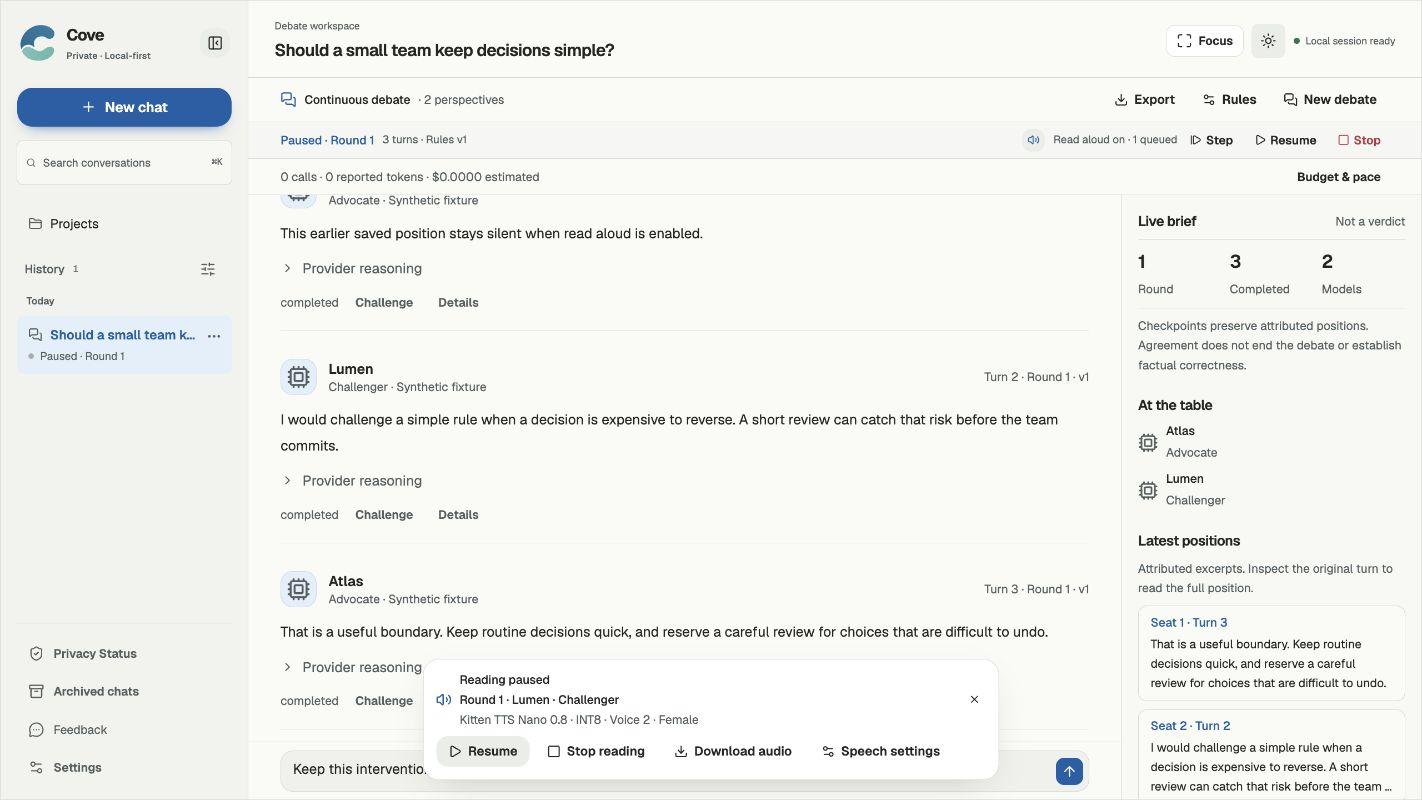
Explain a technical idea in a short, conversational paragraph that is easy to read aloud.
Research a question you can check
Let a compatible model find public sources, then inspect the evidence saved with its answer.
- Configure a search service in Settings, choose per-model limits, and turn on the globe for this conversation.
- Ask your question. The model can search or read public pages when needed; you can also attach a webpage through the link icon.
- Open a citation or the References list to inspect the saved source sections. Search queries and page reads happen outside NearAI encrypted inference, and citations do not verify factual correctness.

Find the official documentation for Tavily, Linkup, and Exa. Compare their search options and cite the source for each claim. Identify anything the sources do not establish.
Choose between two perspectives
Plan a small project and see how two models approach the same question.
- Choose two connected models in the workspace.
- Send the same question to both and read the replies side by side.
- Select the answer you want to carry forward, then ask for more detail.

Suggest a creative project for one afternoon. Give me a materials list, a first step, and a way to keep the scope manageable.
Find the answer in your document
Bring a project brief or meeting notes and ask for a summary you can check against the source.
- Attach a text, Markdown, or text-based PDF file.
- Review the extracted text before sending your question.
- Open a citation to check its saved source lines or pages.

Summarize the attached document into decisions, open questions, and next steps. Cite the source for each decision.
Turn an answer into a usable draft
Take a first version into the workbench, revise one passage, and keep the changes you want.
- Ask for a first draft using your own notes.
- Choose Edit in workbench below the answer.
- Select a passage, request a revision, and review the proposed changes before applying them. Download the finished draft.

Write a short project update for a teammate. Explain what is finished, what needs a decision, and the next action. Use these notes: [paste your notes].
Put a question to debate
Give models different roles, follow cited stage summaries, and manage usage as their positions develop.
- Open Debate mode, enter the topic, and choose two to four configured model seats with distinct roles.
- Set ground rules and choose a summary model and cadence. Use Budget & pace for optional reminders or automatic pause, cost estimates, and a turn interval. Start the discussion and use compact Focus for reading.
- Open a summary citation to read the original turn, or add an intervention for the next round. Pause, step, or resume as needed; Stop ends the session permanently. NearAI seats require the page to stay open. Calls, including summaries, incur usage, and active calls can exceed a budget threshold.

Should a CTO keep writing production code? Consider team size, technical risk, and the cost of becoming a bottleneck.